


CHAPTER 4
OPERATING SYSTEMS
This chapter introduces the student to operating systems, their functions, and types. It also explains how Disk Operating System (DOS) organizes information. The student is expected to use some DOS commands for file and disk management and be able to list external and internal DOS commands by the end of the chapter.
- Definition of the term Operating System.
- Functions of Operating System.
- Types of Operating Systems.
- How DOS organizes information.
- List of DOS commands.
- File Management Commands.
- Disk Management Commands.
- Summary.
- Questions.
DEFINITION OF THE TERM:
OPERATING SYSTEM
An Operating System is a set of programs within the system software that standardizes how a computer’s resources are made available to the user and to application software.
FUNCTIONS OF AN OPERATING SYSTEM
The following functions are common to all Operating Systems:
- Memory Management
An Operating System allocates memory to itself and its resident system programs, sets aside areas for application programs and user partitions, arranges input and output buffers (areas in RAM where input and output data are temporarily stored), and reserves storage for specialized purposes.
- Input/Output (I/O) Management
The Operating System controls reading data from various input devices into memory and writing data to output devices such as printers.
It ensures that each time the user types commands, those inputs are accepted into memory; if memory is busy, it holds the inputs temporarily in buffers until memory is free. It also manages output data awaiting display on the monitor or sending to the printer if those devices are busy.
- Resource Allocation
The Operating System loads programs into computer memory and starts them running after receiving instructions from the user. It divides resources available to different users, memory, and peripherals among different processors running simultaneously so that none of the users gets “stuck” or “deadlocked” due to lack of resources.
- Error Handling
An Operating System must handle errors in the computer system, whether hardware or software faults, and provide routines to correct these errors.
- Provision for User Interface
An Operating System should be able to receive commands from the user and respond accordingly.
- Interrupt Handling
Interruptions can be caused by software errors, mechanical faults, or operator actions such as pressing the Break key. The Operating System should handle such interrupts without causing malfunctions.
TYPES OF OPERATING SYSTEMS
There are mainly two types of Operating Systems:
- Single User System
In this type, only one user can use the machine at a time, load one program at a time in main memory, and process only that program. Most small microcomputers employ single user systems. Examples include MS-DOS, PC-DOS, and Windows.
- Multi User System
This system supports multiple users simultaneously. It is employed by larger microcomputers and minicomputers. More than one program can be loaded into main memory by different users and processed interactively at the same time. Examples include UNIX and Windows NT.
FILE MANAGEMENT
Most microcomputers use disks as the medium of storage. Data stored on disks are held in files, which are groups of related records. Records may hold data about customers, employees, students, etc., depending on the organization.
A file as a group of program instructions is actually a computer program. When files are stored on storage media, the term “file” refers to anything stored on the medium, whether a program or data file.
File and Directories
The Operating System maintains a directory of the addresses of files on disk. Each file on the storage media is assigned a filename (one word). The directory is a list of filenames and the disk addresses where the files are found. When a user refers to a filename, the Operating System consults its directory, locates the file’s address, and makes it ready for use.
Example of a directory listing of files on a system disk using MS-DOS:
Volume in drive A: has no label.
Directory of A:
COMMAND COM 18107 13-12-97 13:00PM
SYS COM 7407 13-12-97 13:00PM
DIRECTORY COM 1307 13-12-97 13:00PM
FIND EXE 1278 13-12-97 13:00PM
4 FILE(S) 142890 BYTES FREE
What the list shows:
- The name of the file, e.g., COMMAND
- Filename extension, e.g., COM
- The number of bytes contained in the file
- Date and time the file was added to the directory
- The total bytes remaining for storing other files
MS-DOS has rules for filename formation. For example, a filename must not exceed 8 characters and may have a 3-character extension. Extensions like COM and EXE indicate program files. The full filename includes a period between the name and extension, e.g., Diskcopy.COM.
 A filename must not exceed 8 characters in length and may require a 3-character extension. The user must type the full filename including the period to use file maintenance utilities effectively.
Directory Hierarchy
Files on a disk can be organized into subdirectories. Directory hierarchy refers to a tree-like structure formed by directories, subdirectories, and files. For example, a directory called KENYA may have subdirectories NAIROBI, MOMBASA, NAKURU, each containing files such as estates.
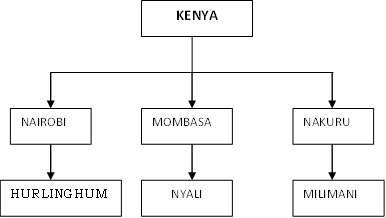

Fig. 4.4.2
To specify which file to open, the user must specify the data path to that file. For example, to open the file Milimani, specify the path: KenyaNakuruMilimani.
A path is a logical, sequential list of directories and subdirectories leading to a filename. Directory names and subdirectories are separated by delimiters such as backslash (), hyphen (-), or slash (/), depending on the MS-DOS version.
Directory names have the extension DIR, while files have TXT. The directory named Kenya, under which Nakuru, Mombasa, and Nairobi are stored, is called the root directory.
Volume Labels and Directories
A volume label is a name given to a disk to identify its contents when offline (not mounted on a drive). Since multiple disk drives can be online simultaneously, the Operating System uses volume labels or volume directories to identify disks.
Volume labels identify a storage medium as a physical unit, while directories identify data stored on the disk. For example, if the volume label is COUNTRY, the complete path to the Milimani file would be:
COUNTRYKENYANAKURUMILIMANI
The Operating System ensures the disk with the volume label COUNTRY is located first before searching for the file in specific directories.
Tab Control
Computers and their Operating Systems can perform many different tasks, not just one job like a stand-alone word processor or calculator. The user must tell the Operating System what task to perform at the moment.
When the computer system is complete, the user communicates with the application program for a particular task. When the application finishes, it is no longer part of the system.
The user communicates with the Operating System through the OS’s Tab Control Language (TCL), which consists of system commands that control the Operating System.
The Operating System signals readiness for further commands by displaying a prompt, such as C:> in MS-DOS. The letter indicates the disk drive where the Operating System will look for files referred to by the next TCL instructions. Drives are identified by letters (A: through D: for four drives). The drive displayed by the prompt is called the logged drive, default drive, or active drive.
MS-DOS COMMANDS
Using system commands is easy: know the right command, type it, and press Enter. System commands help manage files and directories, such as copying, deleting, or renaming files, and managing disks, such as formatting or labeling.
The Syntax of a DOS Command
A DOS command usually has a command name and arguments (information required by the command). Arguments indicate the disk drive or file to be used.
Example:
COPY ANN1 TO ANN2
The command name is COPY. The arguments are ANN1 and ANN2. This command copies the file ANN1 and names the copy ANN2.
Note: Arguments and the command name are separated by spaces.
Running a Program
A DOS command represents a program. To run a program, the Operating System must be loaded (usually by switching on the computer). The system checks if the Operating System is loaded in drive A or elsewhere and loads it if necessary.
To run a program with filename extensions COM, BAT, or TXT, enter its filename without the extension. For example, to run BASIC.COM, type BASIC.
To execute a program not on the logged drive, change the logged drive or specify the drive before the filename without spaces. For example, to run MILO.EXE on drive B: when the logged drive is A:, type:
B:MILO
FILE MANAGEMENT COMMANDS
Changing the Logged Drive
To change the logged drive, type the drive letter followed by a colon at the prompt and press Enter.
Example: If the active drive is C:>, type A: and press Enter.
C:> A:
A:>
Determining the Contents of a Diskette
To view the contents of a disk, DOS provides the DIR (Directory) command, which displays files stored on the disk except hidden files.
Files are listed with filenames, extensions, size, and last saved date and time.
If many files exist, they may scroll too fast to read. Two solutions are:
- /P (Pause) Switch
Displays files one screen at a time, prompting “press any key to continue…”. Format: DIR /P - /W (Wide) Switch
Displays filenames and extensions only, in rows five files wide. Format: DIR /W
To See Only a Particular File on Disk
Use the filename as an argument:
DIR B:FILENAME.TXT
DOS will display information about that file or indicate if it is not on the disk.
To See Directory Files with Similar Extensions
If files have extensions like BAS (Basic programming) or DBS (Database), to list all BAS files, enter:
DIR *.BAS or DIR /P *.BAS or DIR /W *.BAS
The asterisk (*) is a wildcard substituting any characters.
Directory of Files with Similar Names and Different Extensions
To list all files named “Same” with any extension:
DIR Same.*
To list files starting with “Same” and extension DBF:
DIR Same*.DBF
To list all files starting with “Same” with any extension:
DIR Same*.*
The asterisk wildcard fills out a filename or extension from its position to the end.
Another wildcard is the question mark (?), which substitutes a single character.
Example: DIR ?AME*.DBF substitutes ? with any character as long as “AME” follows.
Changing Directories
To change to a directory, use the CD command.
Example: To make Hurlingham the current directory:
CD C:NAIROBIHURLINGHAM
If already in C:, type:
CD HURLINGHAM
To move up one directory level:
CD..
To go to the root directory:
CD
To see subdirectories of the current directory, type:
DIR
Making Directories
To create a subdirectory, use the MD (Make Directory) command:
MD LANGA
To enter the new directory:
CD LANGA
Removing Directories
To remove a directory, ensure it is empty. Use DEL to delete files first.
Example: To remove NYALI directory:
CD MOMBASA
RD NYALI
Copying a File
Copying files is important to guard against data loss. The COPY command requires two arguments: the source filename and the destination filename.
- First argument: file to be copied.
- Second argument: filename for the copy (include drive if different).
Copying from the Same Drive
Example:
COPY SAME1.DBF ZAME2.DBF
The new file must have a different name.
Copying from One Drive to Another
Example:
COPY SAME1.DBF B:
The new filename is not necessary if it is the same as the source.
Copying a Range of Files
Use wildcards:
COPY SAME*.* B:
Copies all files starting with SAME to drive B.
To copy entire contents of drive A: to B:
COPY A:*.* B:
Note: Ensure the destination disk is formatted before copying, as COPY does not copy formatting.
Renaming Files
Use RENAME or REN command:
RENAME OLDNAME.TXT NEWNAME.TXT
You cannot rename to an existing filename.
Wildcards can rename multiple files:
RENAME SAME*.DBF SAME*.WPF
To rename a file on a different drive:
RENAME B: SAME.DBF ZAME.DBF
Deleting Files
Use DEL or ERASE commands:
DEL ZAME.DBF
To delete all files in a directory:
DEL *.*
Displaying the Contents of a File
Use TYPE command:
TYPE Filename.EXT
Press CTRL + S to pause the output.
Printing the Contents of a File
Use:
TYPE Filename.EXT > PRN
Or press CTRL + P to send the screen contents to the printer; press CTRL + P again to stop.
DISK MANAGEMENT COMMANDS
We will examine the following commands:
- Formatting a Floppy Disk
- Inserting a Floppy Disk
- Copying Disks
- Adding DOS to a Formatted Disk
Formatting a Diskette
Formatting prepares new diskettes for data storage. The command is FORMAT.
Formatting organizes the disk so DOS can store, track, and retrieve data. It also checks for defective areas and marks them to avoid data storage there.
Disks can be formatted to include DOS (system disks or boot disks) or not (data disks with more storage space).
Procedure to Format a Non-System Disk
Enter FORMAT or FORMAT B: if not on the logged drive.
Example:
FORMAT
Insert the new diskette when prompted and press any key.
DOS will display “Formatting…” and then “Format Complete” with disk space details.
Answer Y to format another disk or N to stop.
Formatting a Disk to Include the System
Use the /S switch:
FORMAT /S or FORMAT /S B:
This transfers system files, including hidden files and COMMAND.COM, which form the resident portion of DOS.
Adding DOS to a Formatted Diskette
Two-step process:
- With the target diskette in B: and a system disk in the logged drive, copy hidden files using:
SYS B:
SYS is a non-resident program that transfers system files.
- Copy COMMAND.COM from the system disk to the target disk:
COPY COMMAND.COM B:
Note: You can add DOS to any diskette with enough space. If hidden files already exist, SYS will give an error. To replace hidden files, format the disk again.
Labeling a Disk
A volume name identifies disks, recorded on the disk itself and checked by the Operating System.
Example:
Volume label (11 characters; ENTER for None)? MYDISKETTE
Disk space details follow.
Note: Always have formatted disks available because some applications do not allow formatting while working on a disk.
Copying Disks
DISKCOPY utility copies the entire contents of a source disk to a destination disk, including the Operating System and formatting.
It does not check for errors on the destination disk.
Be careful to identify source and destination disks correctly to avoid data loss.
Procedure
Format:
DISKCOPY A: B:
This copies drive A: contents to drive B:. All data on B: will be destroyed.
You can also specify DISKCOPY B: A: to copy from B: to A:.
This method is effective for full disks. Otherwise, use:
COPY A:*.* B:
This copies all files and checks for faulty areas on the destination disk.
SUMMARY
- An Operating System is a set of programs within system software that standardizes how computer resources are made available to users and application software.
- Functions include memory management, input/output management, resource allocation, error handling, user interface provision, interrupt handling, file management, and job control.
- Operating Systems can be single user or multi user. MS-DOS commands are divided into File Management and Disk Management commands. Some commands are internal (resident), others external (non-resident).
- Examples of file management commands: deleting, copying, renaming files; viewing, changing, creating directories.
- Examples of disk management commands: copying disks, labeling disks, formatting disks.
- Resident DOS commands include: DIR, COPY, DISKCOPY, RENAME.
- Non-resident DOS commands include: FORMAT, SYS.
QUESTIONS
- Define the term Operating System.
- State and discuss functions of an Operating System.
- What are the two types of Operating Systems? Explain.
- List commands under the following headings:
- File management
- Disk management
- What is the syntax of a DOS command?
- List some internal and external DOS commands you know.
- What will the following DOS commands do?
- COPY DATA1 DATA2
- COPY DATA1 B:
- MD DATA3
- RENAME OLDNAME.TXT NEWNAME.TXT
- What is a wildcard? Differentiate between wildcard, asterisk (*), and question mark (?).
- Explain what the following DOS commands will do:
- COPY DATA *.* A:
- DISKCOPY A: B:
- DEL DATA*.DBF
- ERASE ?ATA*.*
- TYPE DATA*.*
- TYPE DATA*.DBF > PRN
(i) What is formatting? Why is it important?
(ii) How would you format a diskette? How can you include an Operating System on a formatted diskette?
- What are the two ways of adding DOS to a formatted disk?
- Write down the command for adding a volume label to a disk.


